Valor Mortis Demo: Platform, PC Requirements & Comfort Options
Before you jump into the Valor Mortis demo, it pays to know exactly which hardware you need, which features are confirmed, and how to set yourself up to learn the fights comfortably. Everything below is gathered from the official Steam store pages for the full game (App 2828710) and the demo build (App 4641840), community-checked on July 27, 2026. Anything that is advice rather than an official spec is labelled as such.
A note on this data: these figures come from a community fan site relaying Steam store listings, so treat them as community-reported rather than an official developer statement. Where details are unverified, we say so.

Which platform can you play the demo on?
As of the last check, Valor Mortis is listed for Windows PC via Steam only. The store page specifies a 64-bit operating system and DirectX 12. If that ever changes, the listing is the thing to re-check.
Is there a Valor Mortis demo on PS5?
This is the question most players ask, and right now the honest answer is: no PS5 version is listed. Searches for “valor mortis demo PS5” turn up nothing official — Steam shows PC as the only platform, with no console versions mentioned. There is no confirmed PS5 demo as of the last check. If console versions appear later, they would show up on the official store pages first, so that’s where to keep an eye out.
How to check if your PC can run the demo
The demo shares the full game’s system requirements, so the same bar applies. Here’s the step-by-step way to tell whether your machine clears it.
Step 1 — Match your specs against the minimum requirements
These are the floor for running the game at all:
- OS: Windows 10 64-bit
- Processor: Intel Core i5-8400 / AMD Ryzen 5 2600
- Memory: 16 GB RAM
- Graphics: NVIDIA GeForce GTX 1070 / AMD Radeon RX 5600 XT
- DirectX: Version 12
- Storage: 50 GB available space
If your GPU is close to the GTX 1070 / RX 5600 XT tier and you have 16 GB of RAM, you’re in the supported range — but expect to be leaning on lower in-game settings.
Step 2 — Decide whether you want the recommended tier
For a smoother soulslike experience, aim for the recommended figures rather than the minimum:
- OS: Windows 10/11 64-bit
- Processor: Intel Core i7-10700 / AMD Ryzen 7 3700X
- Memory: 16 GB RAM
- Graphics: NVIDIA GeForce RTX 2070 / AMD Radeon RX 6700 XT
- DirectX: Version 12
- Storage: 50 GB available space
Note that the recommended CPU tier jumps a fair bit from the minimum (i7-10700 / Ryzen 7 3700X), and the GPU moves up to the RTX 2070 / RX 6700 XT class. RAM stays at 16 GB in both tiers.
Step 3 — Free up 50 GB and leave headroom
50 GB is the listed storage figure for both tiers. Install size and patch data can differ from the headline number, so it’s worth clearing a little more than 50 GB before you download — advice, not an official requirement.
Step 4 — Update your GPU drivers first
DirectX 12 soulslikes are sensitive to driver versions. Before your first launch, update your NVIDIA or AMD drivers to the latest release — this is practical guidance, not an official instruction, but it’s the single easiest way to avoid avoidable stutter or crashes.
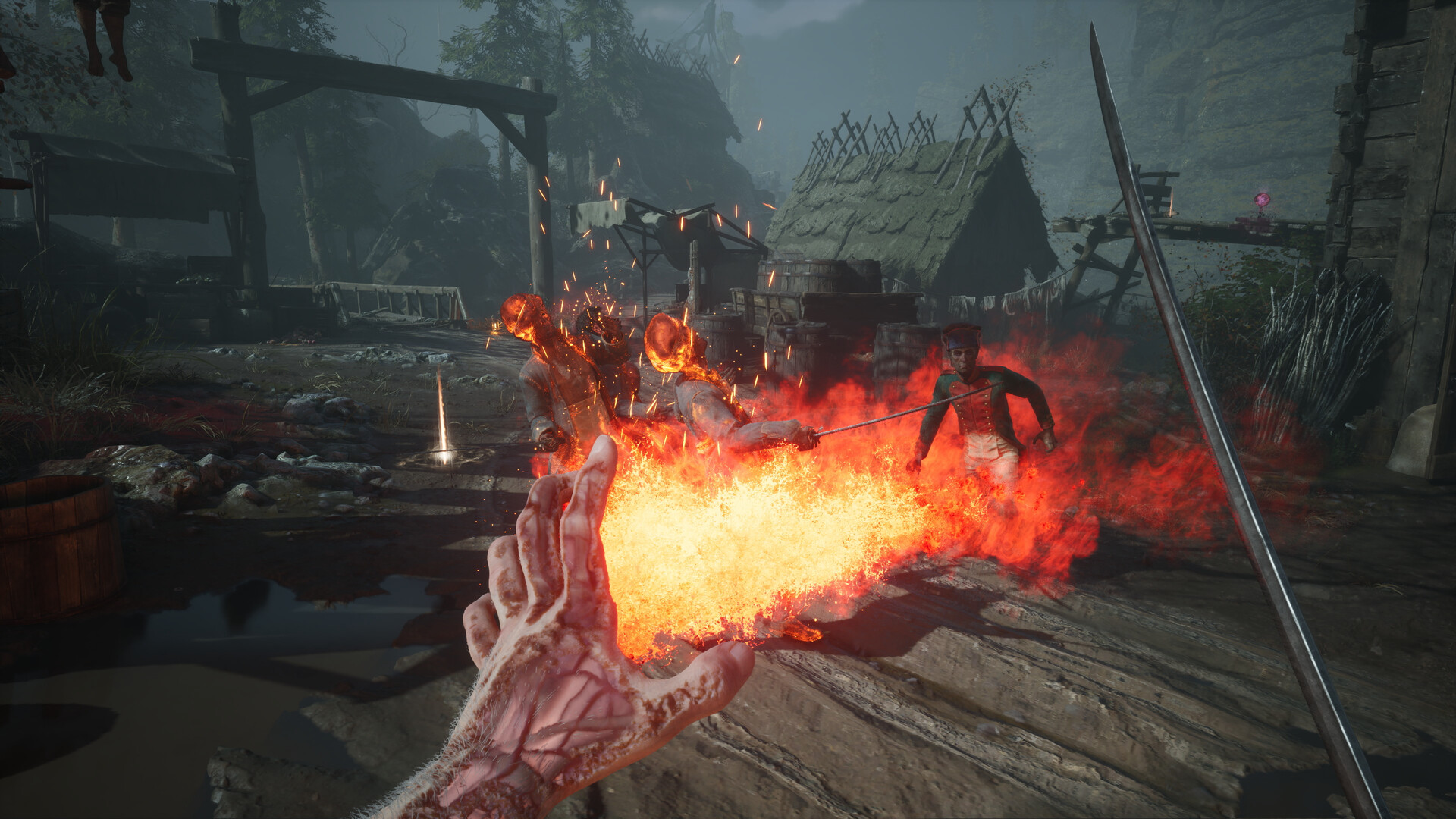
Confirmed features and comfort options
These are taken straight from the Steam store categories, so they’re confirmed:
- Single-player
- Full controller support, including DualSense controller support
- Save Anytime (listed specifically for the demo)
- Subtitle options
- Surround sound
- HDR available
How to set up comfort options before you play
Small setup choices make the punishing combat much easier to learn. Here’s how to configure them.
Use a controller
With full DualSense support confirmed, a pad is a natural fit for parry-timing combat. If you have a DualSense or any supported controller, hook it up before your first session rather than switching mid-run.
Turn on subtitles
The mix is atmospheric, which can make dialogue easy to lose. Enabling subtitle options lets you follow the story even in noisy scenes.
Consider HDR and surround sound
If your display and audio setup support them, HDR availability and surround sound are both confirmed features. Enabling them is a comfort preference — worth trying if you have the hardware.
Lean on Save Anytime to learn fights
Save Anytime is the standout feature for a soulslike demo. It lets you stop and resume freely, which is genuinely useful for learning the demo boss without pressure — you can retry attempts, step away, and come back without losing your place. Note that this is listed specifically for the demo, so don’t assume the same flexibility carries into the full release.
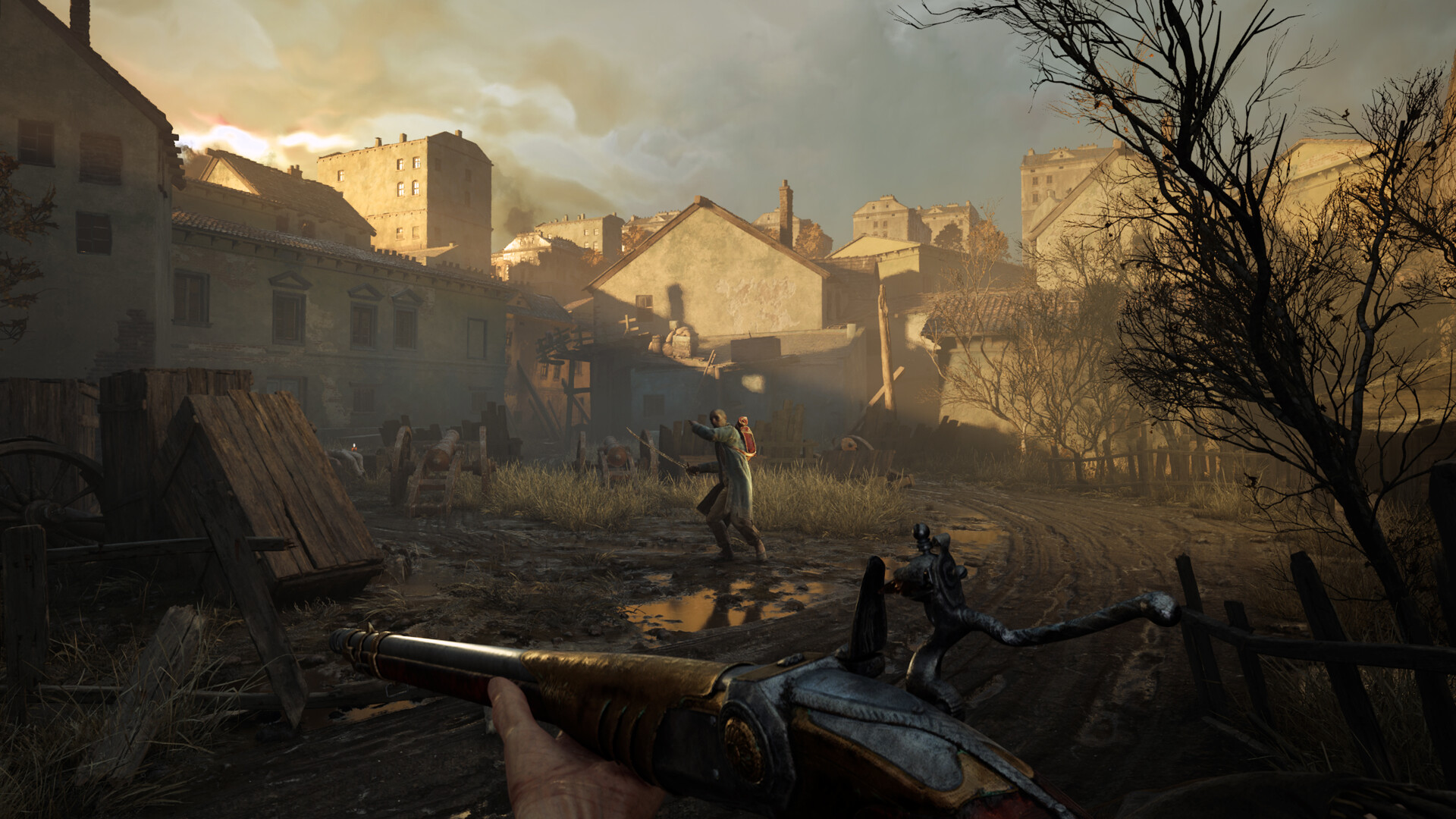
Known issues and what we’re not claiming
We’re deliberately not listing specific demo bugs or performance quirks, because they haven’t been verified hands-on in the current build, and unconfirmed reports won’t be repeated as fact here. If corroborated issues emerge, they’ll be added with a Community tag and a note on the affected build. Until then, treat any bug posts you see elsewhere as unverified.
Quick pre-launch checklist
- Confirm you’re on Windows PC via Steam (no PS5 demo is listed).
- Check your CPU, GPU and 16 GB RAM against the requirements table.
- Free up at least 50 GB of storage.
- Update your GPU drivers.
- Plug in a controller and enable subtitles / HDR as you prefer.
- Use Save Anytime to practice the boss fights stress-free.
Once you’re set up, the next steps are learning the weapons and abilities and working through the demo’s encounters — but get the settings and hardware squared away first so nothing technical gets in the way of the fights.